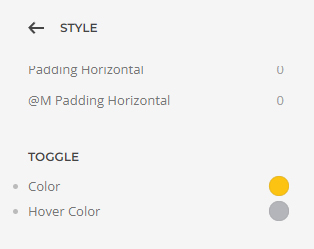
change the font size on a button
Style / Button - right at the bottom of the Button style area
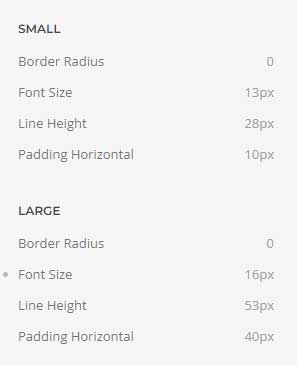
- Hits: 10
Style / Button - right at the bottom of the Button style area
/* To Top Button style */

.uk-totop {

padding: 30px;

color: #ffffff;

background-color: #00000089;

}Blue and green buttons
Add to the Joomla article
<button class="blue-button"><a href="mailto:This email address is being protected from spambots. You need JavaScript enabled to view it. ">Contact Eleanor</a></button>class="blue-button"
Add to the Settings / CSS
/* Blue Button design */
.blue-button, {
color: #fff !important;
font-size: 16px;
background-color: #203ce1;
border-color: #000 !important;
border-width: 1px !important;
border-style: solid;
padding: 10px
}

.blue-button a:link {
}

.blue-button:hover {
color: #000 !important;
background-color: #0820ad;
border-color: #000 !important;
border-width: 1px !important;
border-style: solid;
}
/* END Button design */

/* Green Button design */
.green-button, {
color: #fff !important;
font-size: 16px;
background-color: #15af52;
border-color: #000 !important;
border-width: 1px !important;
border-style: solid;
padding: 10px
}

.green-button a:link {
}

.green-button:hover {
color: #000 !important;
background-color: #176741;
border-color: #000 !important;
border-width: 1px !important;
border-style: solid;
}
/* END Button design */
Add to the Joomla article
<button class="gf-button"><a href="mailto:This email address is being protected from spambots. You need JavaScript enabled to view it. ">Contact Eleanor</a></button>Add to the template CSS
/* Button design */
.gf-button, {
color: #000 !important;
font-size: 20px;
font-family: playfair display;
background-color: #00dbf1;
border-color: #000 !important;
border-width: 1px !important;
border-style: solid;
padding: 10px
}

.gf-button a:link {
color: #000 !important;
}

.gf-button:hover {
color: #000 !important;
background-color: #fff;
border-color: #000 !important;
border-width: 1px !important;
border-style: solid;
}
/* END Button design */Add to, Settings / CSS - (CHANGE depending on your link path.)
/* Change the bullet point image */
@internal-list-bullet-image: "/images/graphics/bullet.png";
Add to each bullet list. (This stays the same.)
<ul class="uk-list uk-list-bullet">
Here it is to just copy.
class="uk-list uk-list-bullet"
.uk-list-bullet > ::before { left: -40px; }
.uk-list-bullet > * { padding-left: 40px; }/* Bullet - Change the bullet point image */
@internal-list-bullet-image: "/images/graphics/list-bullet.png";
/* Bullet - Change the second indent bullet point image */
.uk-list-bullet li:before {
&:extend(.uk-list-bullet > ::before);
}
/* Bullet - remove the original bullet */
.uk-list-bullet li {
list-style-type: none;
}
/* Bullet - improve the layout */
.uk-list-bullet li:before,
.uk-list-bullet>::before {
background-position: 0 50%;
}
Drop Kick Brewery
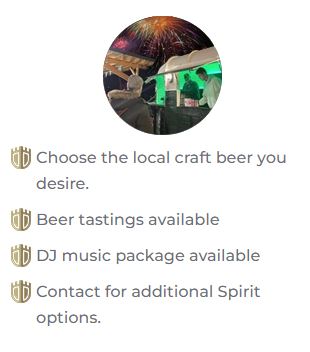
List make the images go above the second column
Add code to List / Advanced / CSS
@media(max-width: 640px) {
    .el-item > .uk-grid {
    display: flex;
    flex-direction: column;
    }
}Click into the Grid
Settings / General / Text Alignment - center
Click into the grid.
settings / panel / padding
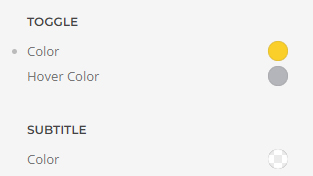
style / navbar / toggle
Add to settings / Custom code / CSS
.uk-navbar-toggle{
min-width:20px;
}
Layout / Site
Add logo for top main menu.
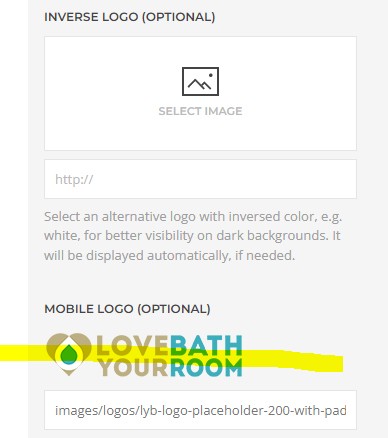
Home / Menus
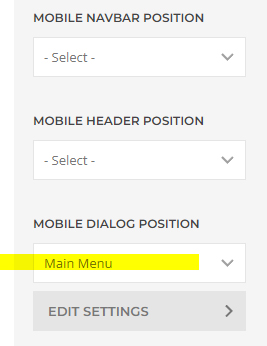
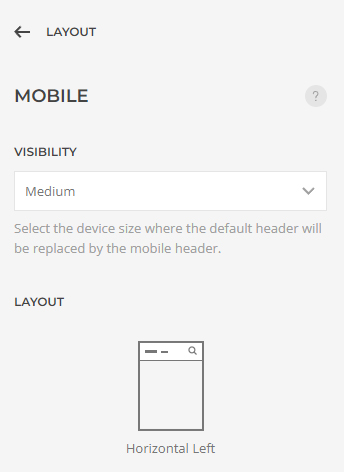
Layout / Mobile
lots of settings to look at here.
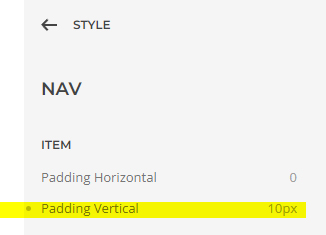
Style / Nav
Padding between menu items
Menu item font size
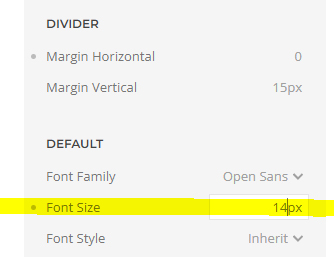
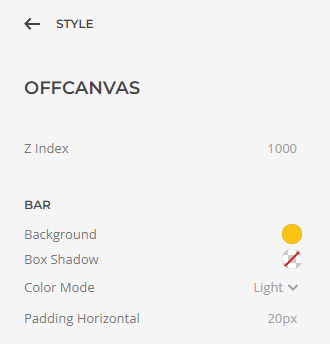
Style / Offcanvas
Mobile menu background colour
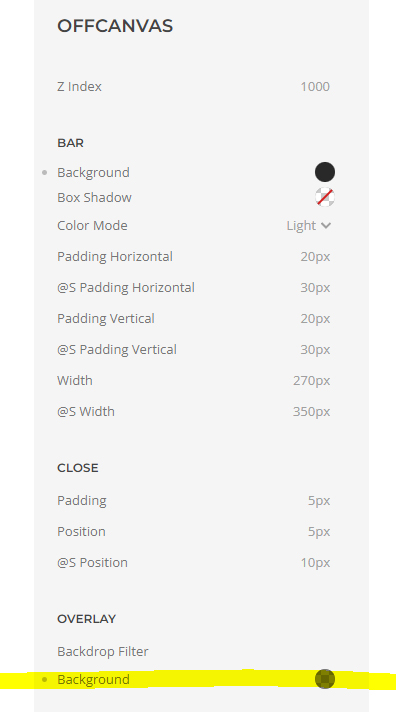
Colour over the rest of the live page
Change colour of the hamburger
Style / Nav Bar / Toggle