Make buttons size the same width
.btn-dark, .btn-secondary, .uk-button-secondary {

width:250px;

}- Hits: 11
.btn-dark, .btn-secondary, .uk-button-secondary {
width:250px;
}Navigate to YOOtheme > SETTINGS > Custom Code > CSS/LESS, and add the following to it:
 /*Force toolbar (Top area above header) to show on small screens*/
@media(max-width:  @breakpoint-medium) {
    .tm-toolbar.uk-visible\@m {
    display: block !important;
    }
    .tm-page {
    display: flex;
    flex-direction: column;
    }
    .tm-toolbar {
    order: -1;
    }
}You can create anchor points in a section:
Edit > Advanced > ID - say
my-anchor-pointto link to the anchor from a button or similar use '
#my-anchor-point<p><button class="gf-button"><a href="/index.php#meet-the-team">Return Home</a></button></p>/*button padding */
.btn, .uk-button {
padding-top: 12px;
padding-bottom: 12px;
}
Navigate to YOOtheme > SETTINGS > Custom Code and into the field "CSS/LESS" insert the following CSS:
/* bullet list - force paragraph space to match - YOOtheme > STYLE > Base > Margin > Vertical. */
ul:not([class]) li + li {
margin-top: @base-margin-vertical;
}
FULL ANSWER
You could edit the HTML markup and change the opening tag of the "Unnumbered List" element from
<ul>
to
<ul class="uk-list">
This is the recommended approach.
Alternatively, navigate to YOOtheme > SETTINGS > Custom Code and into the field "CSS/LESS" insert the following CSS:
ul:not([class]) li + li {
margin-top: @base-margin-vertical;
}
This would inherit the default margin between paragraphs as defined via YOOtheme > STYLE > Base > Margin > Vertical.
You can replace the variable @base-margin-vertical by a lenght of your choice. Just make sure to use an integer followed by a unit, like 20px for example.
Put code into the CSS of the element you want to be sticky.
Adjust the position settings.
/*make the button sticky at the bottom*/
.el-element {
position: fixed;
right: 0;
bottom: 2%;
z-index: 1;
}In the Joomla backend go to Components > RSForm! Pro > Manage Forms.
For each form you use:
Click on the name of the form.
Click on "Form Properties".
Select Responsive Layouts > UIkit 3.x.
Set Options > Load Layout CSS / JS > No.
Padding at the top of the slide out mobile menu
/* mobile menu offcanvas top padding */
.uk-offcanvas-flip .uk-open>.uk-offcanvas-bar {
padding-top: 60px;
}
Style / NavBar
Level up the dropdown text with the nav text
Dropdown
padding 0px
@Mshift Margin -20px
Margin either side of the item text when you have a divider that you want to go full width
style / navbar / dropdown nav item
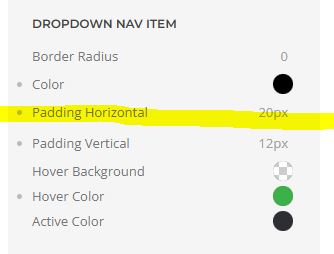
If you have two templates and need a different menu for each design.
You will need a login and a logout.
Create a new article category and an article for the new home page.
Create a new menu Menu2 and add the new page and an alias link back to website1 home.
Create a new Menu Module, Menu2, and 'Only on the pages selected' selected the pages on Menu2, but not the link back to Template1 home.
The default Template Style, Template1 should still be set to Pages, ‘default for all pages’
Created a New Template Style, Template2 selected to show on the Menu2 Pages and the link to the new template from the original menu, but not the link back to the Template1 site.
In the Menu1 Module set 'Only on the pages selected' and selected all the pages except Menu2 Home.
YOOtheme Templates
In the Menu1 template set Menus / NavBar Position Menu1
In the Menu2 template set Menus / NavBar Position Menu2