Sticky menu prestashop
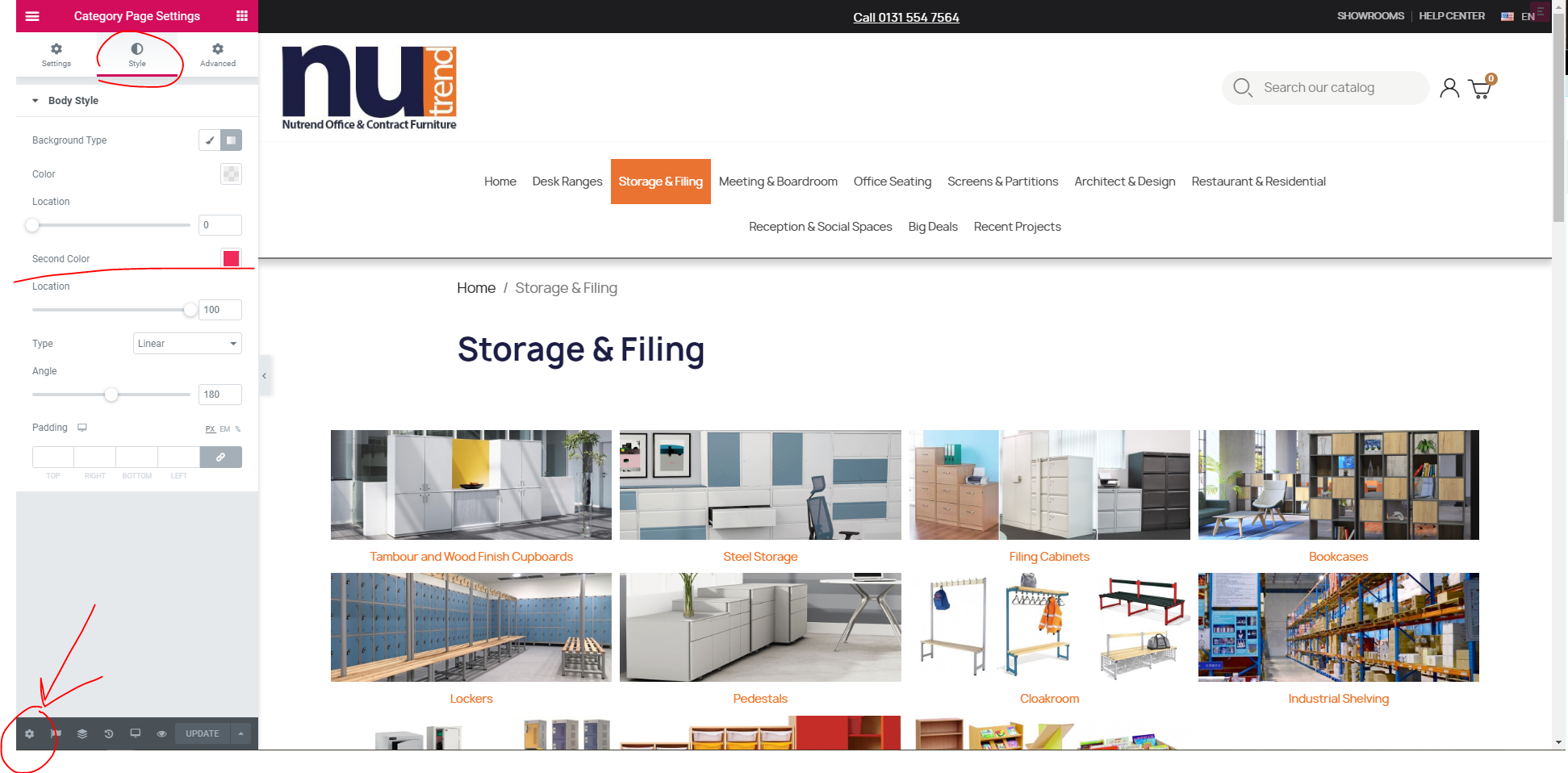
set up the settings
If it doesn't work add:
header {
position: relative;
}
(Garden light shop Order #1997872)
- Hits: 1
set up the settings
If it doesn't work add:
header {
position: relative;
}(Garden light shop Order #1997872)
In Prestashop, we need to make a change to a template file to send out the 'no index, nofollow;' signal to robots.
Ideally, we will be using a child theme, as we will need to change a template file.
The 'head.tpl' file controls the header of the website.
Find it at public_html/themes/child_classic/templates/_partials/head.tpl
Find the SEO block at line 32

Add the following code under line 38.
<meta name="robots" content="noindex, nofollow">Now the whole block will look like:

Robots are now blocked from the site.
You can test this by going to https://www.siteguru.co/free-seo-tools/noindex
Add the site URL and you'll be able to test if your change has been successful.
The order confirmation URL for Prestashop always begins:
https://domain.order-confirmation
You need that to measure purchases in Google Ads.
Order.php file. This involves changing the generateReference() function to return the order ID instead of a random alphanumeric string.
Order.php file: Navigate to the PrestaShop installation directory, then go to classes/order/Order.php.Order.php file: Open the file using a text editor.generateReference() function: Locate the generateReference() function within the Order class.generateReference() function with the following:public static function generateReference($order_id) {
return $order_id;
}Order.php.In the element go to advanced, at the bottom open custom CSS
Here is where you paste the code.
You'll need to adjust the elementor number to what you're working on so, open the developer tools (F12) and find the element so you can change the number.
Then alter the minimum height in the code.
.elementor-5170101 .elementor-element.elementor-element-f978015 figcaption {
min-height: 100px
}https://www.loom.com/share/105519f0f77b4f1da9d4d597d9a04c15
The quantity will not reset to 1 until you click out of the quantity field.
Module Manager > Mail Alerts
If you need to modify the store URL associated with your modules in your Marketplace Addons account, and to help us process your request promptly, I invite you to contact the concerned department Webmaster marketplace Addons via the help center:
1- https://addons.prestashop.com/en/contact-us
2- Choose "I have a question regarding The PrestaShop Addons site".
3- Select "I have a question on another subject".
4- Fill in and send the form at the end of the page, specifying :
• the reason for the change
• the product to be associated with a new URL
• the new URL in question
I invite you to read this article: https://help-center.prestashop.com/hc/en-us/articles/9201828604050-Modify-the-URL-associated-with-a-module