Configuring GDPR Extension

  1. Install GDPR Component
  2. Import the json file from:  \Shared joomla Software\111 - Essentials\GDPR for Joomla
    Components > GDPR > Configuration > Import Configuration > Choose file > Start Import
  3. Edit the Privacy Policy and the Cooke Policy - use the site's address and email address
    Components > GDPR > Configuration > Cookie Consent - scroll all the way down to the 'Popup anfd Policies Content' section
  4. Cookie consent - Tags list to block - Remove iframe,
  5. On the front end of the website accept all cookies.  Then on admin back end Audit the Website
    Components > GDPR > Website Audit - add in the website link and click analyse.
  6. Import the cookie descriptions
    Components > GDPR > Description of Cookies and Domains > Import default descriptions
  7. Create the 'Cookie Settings GDPR View' menu item
    Menus > Legal Menu > New > Menu Type = GDPR > Cookie Settings View
  8. Create the Data Processing Records
    Components > GDPR > Configuration > Processing Activities Record - contact cli8ent to get the relevant information


  • Hits: 13

Making images appear in RS Form Pro emails

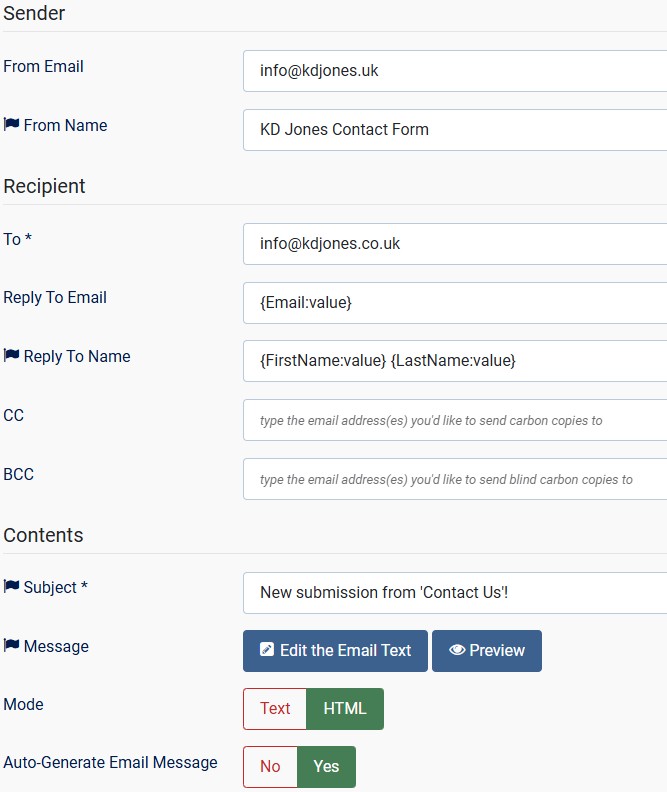
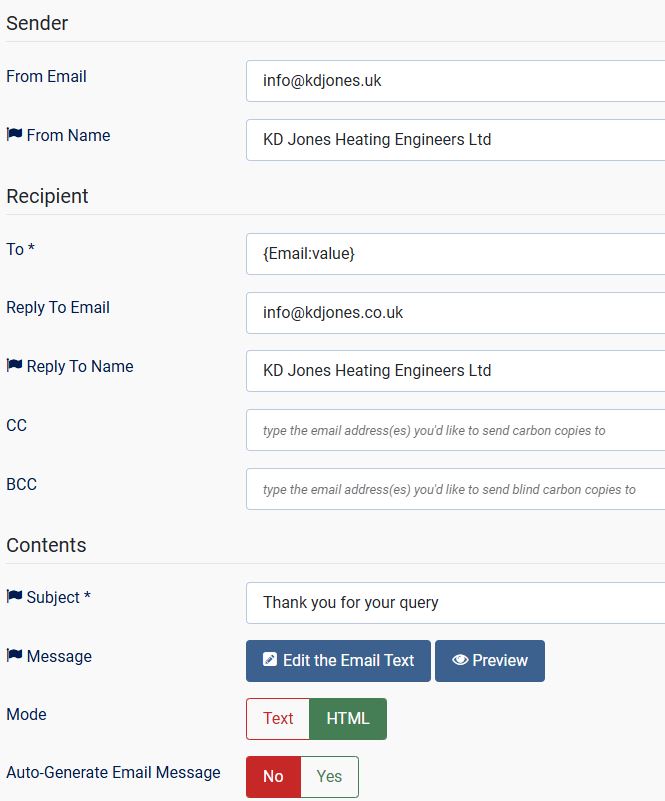
To make the pictures appear in emails from RS Form Pro uyou need to use the 'absolute' path for the images.

You need to make the following change to JCE

JCE > Control Panel > Editor Profiles  > default > Editor Parameters > Cleanup and Output

Set URL conversion as 'Absolute'.

RS Form Pro > Form Properties > Emails > Edit Email Text > Code view

Change the mage URL from

<img src="/images/path_to_image.jpg" ...

to 

<img src="/domain_name/images/path_to_image.jpg" ...


  • Hits: 9

JSitemap Pro no index no follow - google not seeing a website

  1. Check that Joomla global configuration is not set to 'noindex, nofollow'
  2. Check that Joomla menus and Joomla articles are not set to 'noindex, nofollow'
    for menus - go to the menu item click on metadata check robots
    for articles - click into the article / publishing / robots
  3. Check that JSitemap Metainfo Dashboard are not set to 'noindex, nofollow'
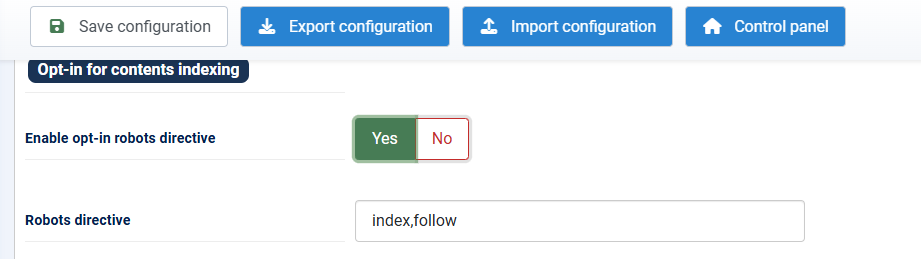
  4. Use JSitemap to override all as 'index, follow' with the following parameter
force index follow


  • Hits: 7

Configuring Jsitemap Pro correctly for the images xml sitemap

To properly configure jSitemapPro to produce the images xml sitemap you shouold do the following:

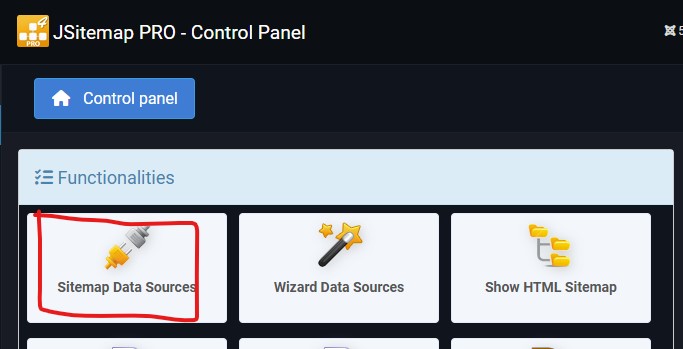
Admin Backend > JSitemap pro Control Panel > Sitemap Data Sources

jsitemappro sitemap data sources

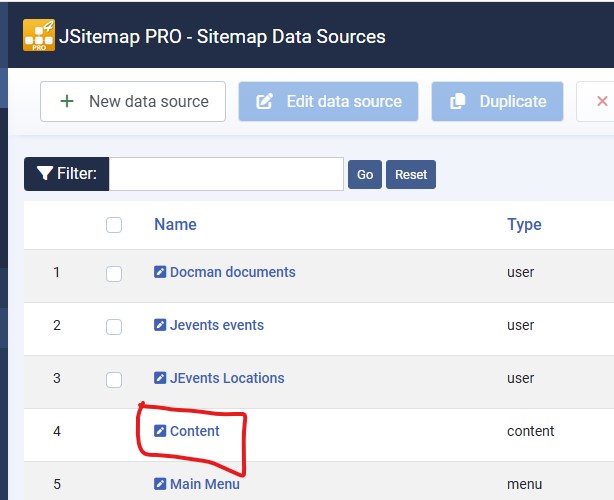
Select the 'Content' data source

jsitemappro content data source

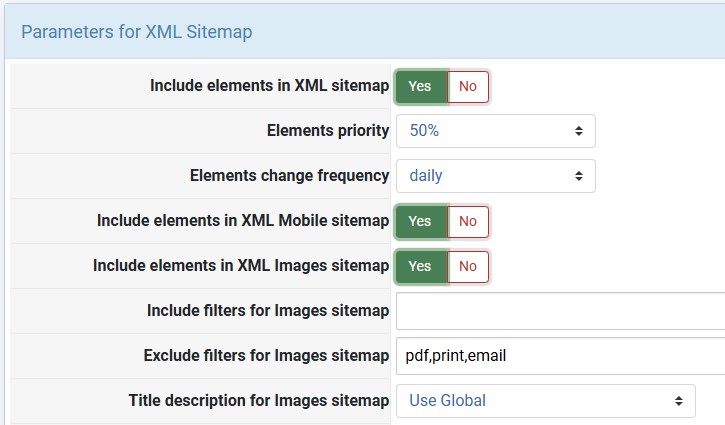
Scroll down to 'Parameters for XML Sitemap' and configure as shown

jsitemappro xml parameters

pdf,print,email

Save & close

  • Hits: 9